Join us for our ERP Community Day!

Join finance and operations professionals at the London Transport Museum on the 28th January 2027, where Nolan Business Solutions will guide you on a journey from legacy systems to future AI-powered ERP. Our agenda is now live!

Register!

Closing Balance Report

Last updated

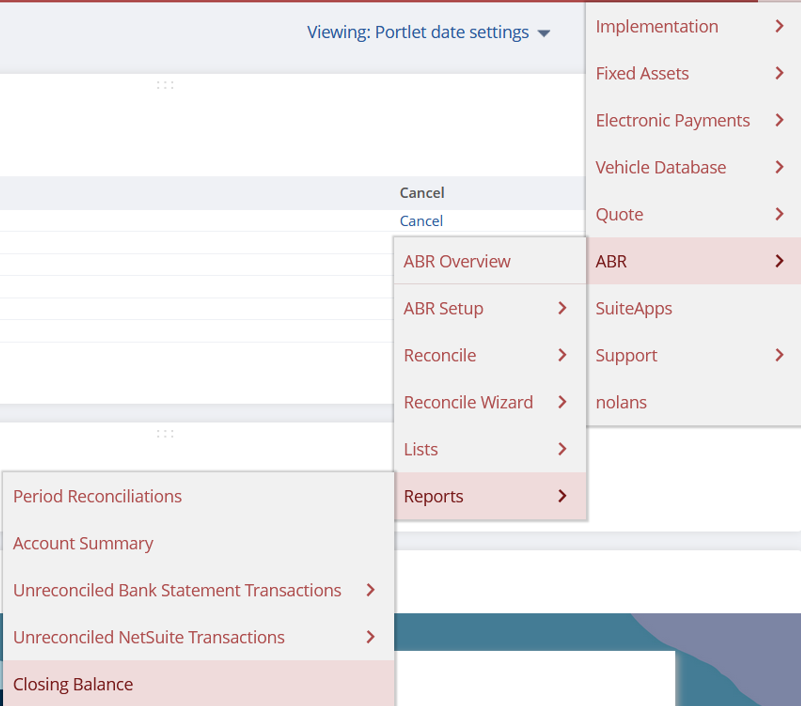
To create a Closing Balance Report, firstly go to ABR -> Reports -> Closing Balance as shown below.
This will bring you to the Closing Balance Report screen where you must select the Account and Statement Date.
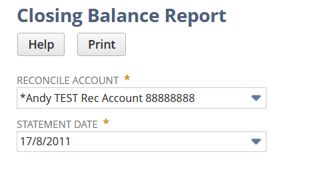
Now click Print.

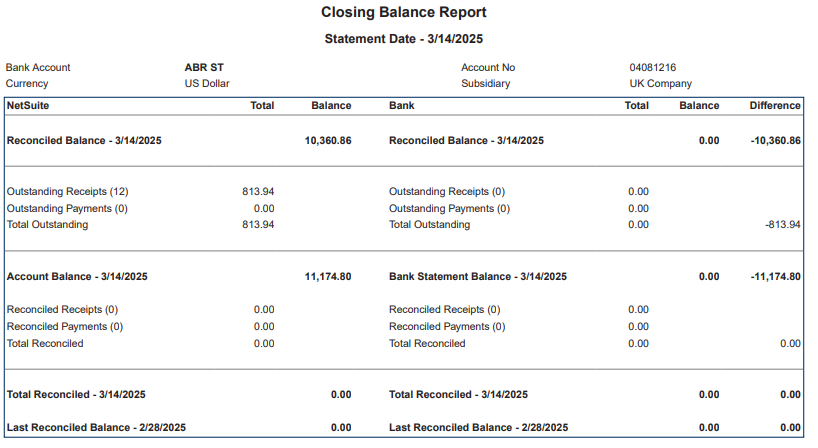
Your Closing Balance Report will open in a new window. This report displays the Closing Balances for both the NetSuite and Bank Balances. Also included are the Summary of Outstanding Transactions, and the calculated Adjusted/Reconciled Balance on the Reconciled Statement Date.

The Difference between the Reconciled Balances should be 0.

The Second Page details the Outstanding Transactions that make up the Reconciling Difference on both the NetSuite and Bank sides.
Next Chapter: Period Reconciliation
var _glc =_glc || []; _glc.push('all_ag9zfmNsaWNrZGVza2NoYXRyDwsSBXVzZXJzGMTP7pYDDA'); var glcpath = (('https:' == document.location.protocol) ? 'https://my.clickdesk.com/clickdesk-ui/browser/' : 'http://my.clickdesk.com/clickdesk-ui/browser/'); var glcp = (('https:' == document.location.protocol) ? 'https://' : 'http://'); var glcspt = document.createElement('script'); glcspt.type = 'text/javascript'; glcspt.async = true; glcspt.src = glcpath + 'livechat-new.js'; var s = document.getElementsByTagName('script')[0];s.parentNode.insertBefore(glcspt, s);