We’ll be at Accountex, ExCeL London — visit us at stand 531!

Gain impartial insights into the two leading cloud AI-powered ERP systems from the UK's leading partner for both Oracle NetSuite and Microsoft Dynamics 365 Business Central

Register!

Rule with filters

Last updated

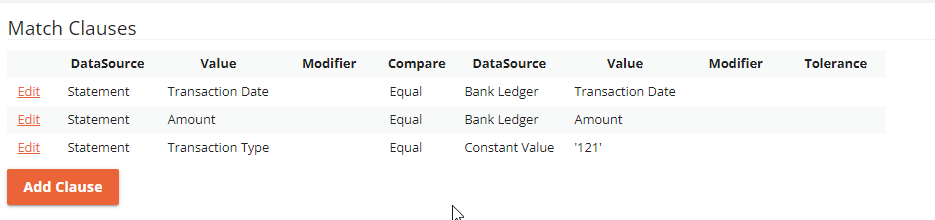
To setup a simple match rule to match transaction on Transaction Date and Transaction Amount, you can use a filter clause to limit the scope of this rule to only process specific Transaction Types.
This rule assumes you want to limit this rule to only process Statement lines which have a 'Transaction Type' of 121

  1. Goto ABR -> Match Rules
  2. Click on New
  3. Follow 'Tutorial 1' to create a simple Rule
  4. Under Match Clauses click 'Add Clause'
  5. On the left side, select Data Source 'Statement Trx'
  6. In the 'Value' dropdown, select 'Transaction Type'
  7. On the right side select Data Source 'Constant'
  8. In the 'Value' field enter the '121'
  9. Click 'Save'
  10. You match clauses should now look like this
Next Chapter: Rule with grouping
var _glc =_glc || []; _glc.push('all_ag9zfmNsaWNrZGVza2NoYXRyDwsSBXVzZXJzGMTP7pYDDA'); var glcpath = (('https:' == document.location.protocol) ? 'https://my.clickdesk.com/clickdesk-ui/browser/' : 'http://my.clickdesk.com/clickdesk-ui/browser/'); var glcp = (('https:' == document.location.protocol) ? 'https://' : 'http://'); var glcspt = document.createElement('script'); glcspt.type = 'text/javascript'; glcspt.async = true; glcspt.src = glcpath + 'livechat-new.js'; var s = document.getElementsByTagName('script')[0];s.parentNode.insertBefore(glcspt, s);