To setup a simple match rule to match transaction on Transaction Date and Transaction Amount
- Goto ABR -> Match Rules
- Click on New
- Enter a Rule Name 'Exact Match on Transaction Date and Amount'
- Under Match Clauses click 'Add Clause'
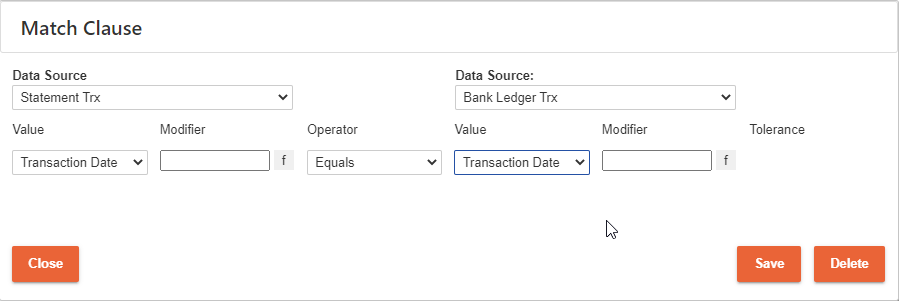
- On the left side, select Data Source 'Statement Trx'
- In the 'Value' dropdown, select 'Transaction Date'
- On the right side select Data Source 'Bank Ledger Trx'
- In the 'Value' dropdown, select 'Transaction Date'
- You match clause should now look like this
![]()
- Click 'Save' to save the clause
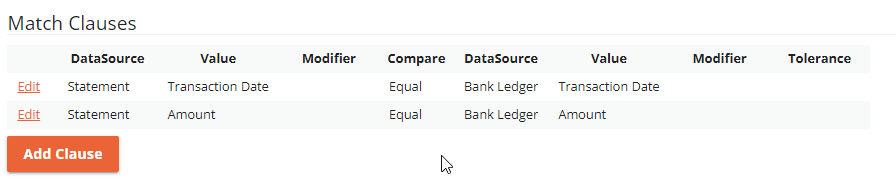
- Next click 'Add Clause' to add the 2nd part of the Rule
- This time select 'Transaction Amount' as the field on both sides
- Click 'Save'
- You now have 2 clauses
![]()
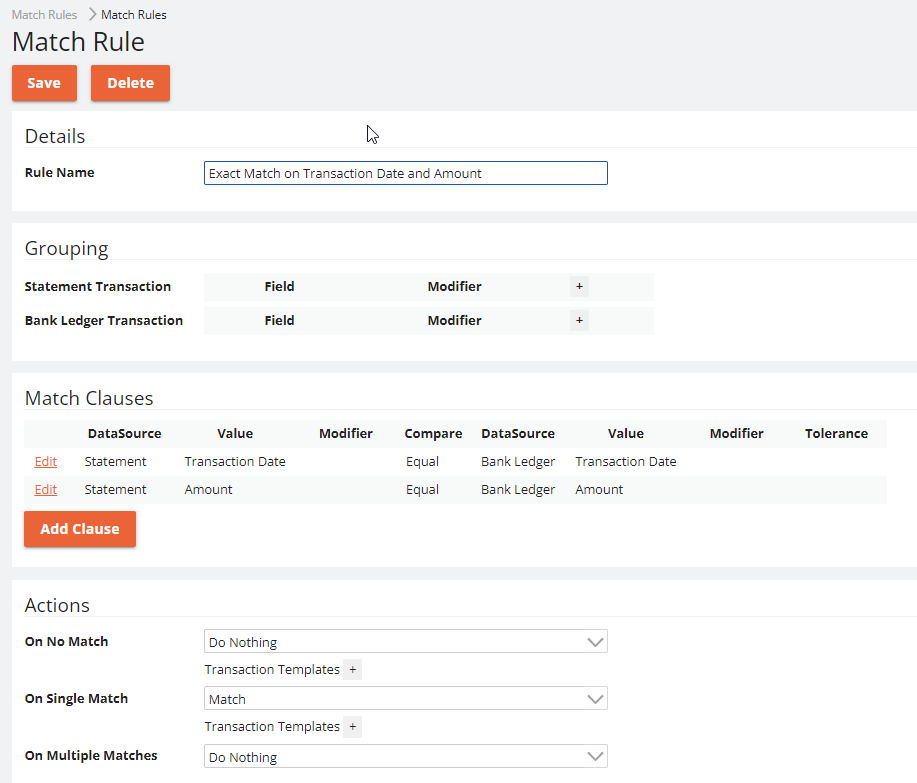
- Complete the rule by select what actions to take
- For 'On Single Match' select 'Match'
- For 'On Multiple Matches' select 'Take First' this ensures that even if there are multiple matching records at least 1 is used to match
- Your final rule will look at follows
![]()
- Click 'Save' to save the rule